Connect a source
Connect a source through the Sources screen. Verify access before importing historical records.
Overview
A source supplies community accounts and activity from a Slack workspace, GitHub organization, forum or event calendar. Datum identifies accounts that belong to the same person.
Each connection needs a source selection, connection details and an access check. Datum encrypts submitted credentials in your workspace’s vault. No interface returns stored credentials, including to you.
Only workspace owners can connect sources. Other users see A workspace owner can connect this source. in the setup panel.
Basics
Use the Sources page
Sources lists connections with the columns Source, Health, Runs 7d, Accounts, Matching and Last event. Health shows one of these values:
- Never run: before the first sync or delivery.
- Ingesting: during a sync.
- Healthy: the source works.
- No recent data: nothing in the last 7 days, or a one-off import that finished.
- Paused: you paused the source.
- Needs attention: an incorrect key, a failed run or delivery, incomplete setup or expired authorization. Hold the pointer over it to see the reason.
Runs 7d counts the runs and failed webhook deliveries of the last 7 days. It also shows how many failed.
Needs attention filters the list to connections with problems. Select a row to open the source’s page.
Last event shows when the newest imported activity occurred at its source. It stays unchanged when a sync finds no new activity or replays older history. Never means that Datum imported no activity from the source. The source can still have imported member profiles.
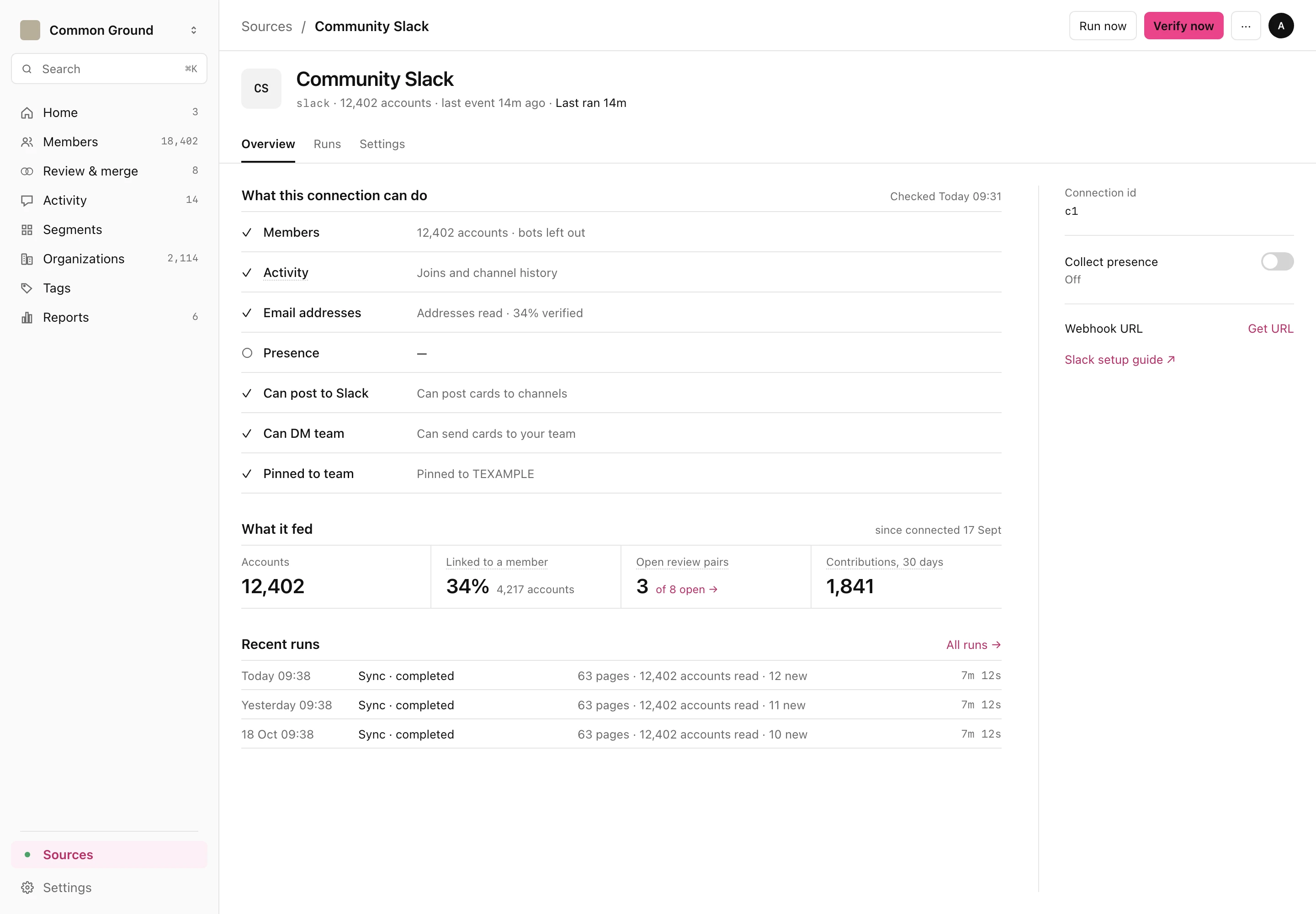
The header shows the source name, kind, account count and last-run time. The page has three tabs:
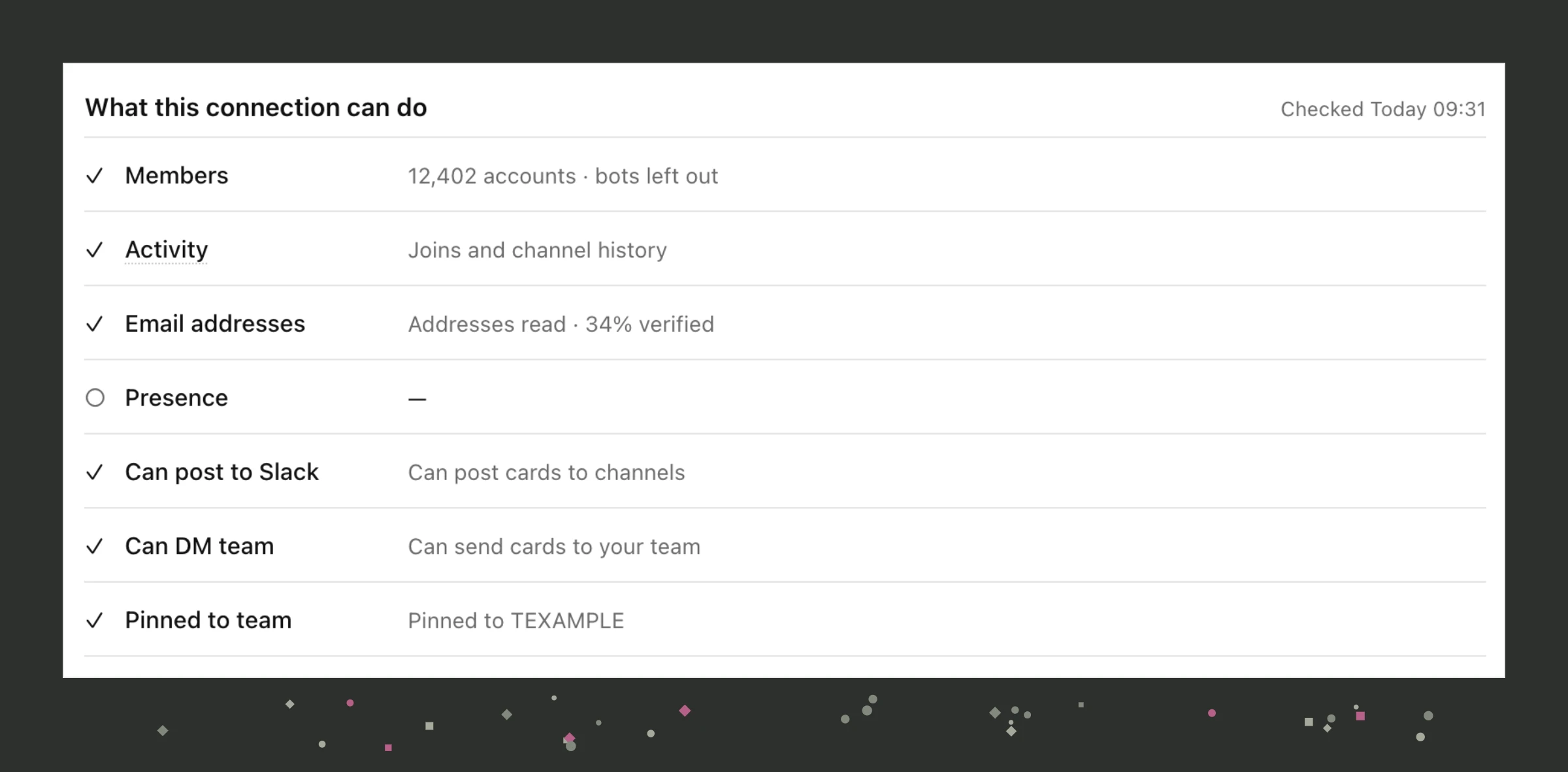
- Overview shows the current problem and an action to resolve it. What this connection can do lists capabilities from the last check. Recent runs shows recent syncs. The side column shows the account count, Collect presence, Connection id and a setup guide link. It also includes Webhook URL for compatible sources.
- Runs lists runs, newest first, with what each imported. Webhooks and push sources have Intake log instead.
- Settings shows the kind, ID, connection date, Last check, Webhook address and Community presence. It also includes Reconnect when applicable.
Connect a source
Open the catalogue
Open Sources → Connect a source. Search by name or select a category.
Categories include Community platforms, Developer, Data and files, Enrichment, and CRM and warehouse. Each card describes the available records and required credentials.
Select your source
Select a card.
The setup panel opens beside the catalogue. What to do lists provider instructions and links. Connection details contains the form.
Fill in the connection details
Enter a Name. Complete the required connection fields.
Fields marked (optional) can remain empty. Boolean settings offer Use connector default, Enabled and Disabled. After submission, secret fields display Stored in the vault. Type a new value to replace a stored secret, for example after a failed check.
Sign in through Connect, if available
Sources with provider sign-in display Connect beside Verify. See Sign in with the provider.
Verify
Press Verify. Select View this source → to open the source’s page.
Datum saves the connection and checks access. The result displays ok or Needs attention, followed by an explanation and details.
Sign in with the provider
Complete the form for a source that requires provider approval. Press Connect. Approve access in the provider’s new tab.
The panel displays Waiting for authorization in the other tab… before approval. After approval, it displays Authorization received. Verify to check access.
Select Open authorization again ↗ if you closed the tab.
There are two kinds of sign-in:
- App manifests, for GitHub and Slack. Datum creates an app for your organization or workspace from its supplied manifest. It stores the app credentials. See GitHub and Slack.
- Your own OAuth app, for the rest. Each community supplies its own OAuth app. The setup panel provides a redirect address ending in
/connect/<kind>/callback. Meetup uses this method.
Register your OAuth app with the displayed redirect address. Enter its client ID and secret in the form.
Sign-in links expire after ten minutes. Each link works once in the browser session that created it. Press Connect again if the link expires.
Import historical records
GitHub, Higher Logic Vanilla, Gainsight Communities, Gradual and Luma enable their schedules by default. A running worker starts their first sync shortly after connection. Each source guide describes its schedule.
Other sources have disabled schedules or no schedule. Press Run now on the source’s page to start the first sync. Alternatively, run ocmgr ingest <connectionId> from your terminal or request a backfill through your agent.
The page displays Run queued. when a worker accepts the request. It reports when no worker can accept it.
The first sync reads historical records page by page. Large communities can take longer. Datum saves each page, so interrupted syncs resume from their last position.
Manage source access and syncs
Open a row’s ··· menu on Sources. Only workspace owners can access these actions.
- Verify repeats the access check and opens the result on the source’s page. Verify all checks every source in sequence.
- Reconnect appears for sources with provider sign-in. It also appears directly on rows with expired or revoked authorization.
- Webhook URL opens Webhook in Settings for compatible sources. It supplies the provider destination after you store the webhook secret.
- Pause stops scheduled syncs and keeps existing records. Datum continues to accept webhook deliveries, and they wait until you resume. Resume starts scheduled syncs again.
The source header has Run now (for sources that import), Verify now, and a ··· menu with Check again, Webhook URL and Pause. Verify now and Check again do the same check. Overview describes problems and offers an action, such as Reconnect or Check again. When a check needs a settings change, its hint gives the ocmgr connection update command to run. The linked setup guide contains provider instructions.
Live updates and the intake log
Webhooks deliver changes as they occur. Datum checks each delivery against the source’s secret before storing it. It then records the delivery in the intake log for processing.
A webhooks and push source displays Intake · last 30 days in its Intake log tab. All and Errors only filter deliveries. The log retains original payloads for 30 days. Member erasure clears attributable payloads sooner.
Run ocmgr inbound list --connection <connectionId> to list deliveries for any source. Run ocmgr inbound replay to retry a failed delivery.
From your terminal or agent
The CLI, MCP and REST support the same connection operations. Provider sign-in still requires a person to open a browser link. Run ocmgr connection setup <kind> --json to list required inputs and provider steps.
ocmgr connection setup discourse --json
ocmgr connection create --kind discourse \
  --config '{"baseUrl":"https://forum.example.com"}' \
  --secret-file discourse-secrets.json --json   # {"apiKey":"…","apiUsername":"system"}
ocmgr connection verify <connectionId> --json
ocmgr ingest <connectionId> --json
{ "name": "explore", "arguments": { "code": "return await ocmgr.help(\"describe_connector\")" } }
{ "name": "describe_connector", "arguments": { "kind": "discourse" } }
{ "name": "create_connection", "arguments": { "kind": "discourse",
"config": { "baseUrl": "https://forum.example.com" },
"credentials": { "apiKey": "…", "apiUsername": "system" } } }
{ "name": "verify_connection", "arguments": { "id": "<connectionId>" } }
{ "name": "run_backfill", "arguments": { "id": "<connectionId>" } }curl -X POST "$OCMGR_URL/v1/connections" -H "Authorization: Bearer $OCMGR_API_KEY" \
-H 'content-type: application/json' \
-d '{"kind":"discourse","config":{"baseUrl":"https://forum.example.com"},"credentials":{"apiKey":"…","apiUsername":"system"}}'
curl -X POST "$OCMGR_URL/v1/connections/<connectionId>/verify" -H "Authorization: Bearer $OCMGR_API_KEY"
curl -X POST "$OCMGR_URL/v1/connections/<connectionId>/backfill" -H "Authorization: Bearer $OCMGR_API_KEY"Run ocmgr connection connect <connectionId> to get a provider sign-in link. Use --secret-file to keep keys out of shell history. --secret name=value also works.
See create_connection, connect_connection, verify_connection and run_backfill.
Check all sources through the API
ocmgr connection verify-all --json{"name":"verify_connections","arguments":{}}curl -X POST "$OCMGR_URL/v1/connections/verify" -H "Authorization: Bearer $OCMGR_API_KEY" -H 'content-type: application/json' -d '{}'The response lists each connection ID and verification result. Checks run in sequence and continue after an individual failure. GET /v1/connections/{id} includes createdAt and lastVerify; lastVerify is null before the first check. CRM reads accept connection, connectionId or connection_id as the connection filter.
FAQ
Which source should I connect first?
Start with a source that supplies verified email addresses. Examples include the Slack app and Discourse with an admin key. Verified addresses link accounts automatically. Other sources contribute matching evidence, with uncertain matches entering your review queue.
Can I see a key after I've saved it?
No. Datum encrypts secrets in your workspace’s vault and never returns their values. Store a replacement with ocmgr connection update <connectionId> --secret name=value.
Verify says ok but nothing has arrived.
Verification checks access without importing records. Check the row’s Health. Follow Bring in history if it shows Never run.
Does pausing a source delete what it brought in?
No. Pausing retains accounts, activity and credentials. Scheduled syncs stop until you select Resume.
Verify sources from a terminal
The CLI verifies one source per call. To check every source in Docker, save the IDs first and redirect each call’s stdin:
docker compose -f deploy/docker-compose.yml exec -T app ocmgr connection list --json | \
  jq -r '.connections[] | select(.direction == "source" and .internal == false) | .id' > source-ids.txt
while IFS= read -r id; do
  docker compose -f deploy/docker-compose.yml exec -T app ocmgr connection verify "$id" --json < /dev/null
done < source-ids.txt
The stdin redirect prevents Docker from consuming the remaining IDs.
Connection names are display labels and can repeat. Use connection IDs in commands to select a specific source.