Organizations
Find organizations through members' work email domains and GitHub memberships. Community counts exclude your staff by default.
Overview
Datum calculates organizations from two types of evidence:
- Work email domains. An address at
acme.ioassociates the person withacme.io. Datum excludes freemail, relay domains, and enrichment-only addresses. - GitHub organization memberships. A connected GitHub organization’s member list identifies its members.
A person can belong to several organizations, such as a contractor with two work addresses. Datum retains each association. Rows represent associated community members rather than complete CRM company records.
Profile changes update organizations. Datum dissolves organizations that no longer have associated people.
Your team is left out
Counts exclude staff with a verified address on a team domain or the reserved team tag. The default list excludes companies that contain only staff.
Choose Everyone in the scope menu to include staff in the list. On company pages, this control changes the people and activity lists. Headline counts continue to exclude staff.
Headcount
Datum never estimates employee counts. It displays headcount only when your enrichment provider supplies it. See Enrichment.
Logos
An organization shows a stored logo when one is available. Otherwise, it shows an initial. Datum uses the image of the connected GitHub organization, or an icon from the website of the organization. It checks for logos each hour. It gets a logo again after 30 days, or when the source changes. After a failed attempt, Datum also waits 30 days.
To get a logo, an organization needs at least two community members, not counting staff. A GitHub organization needs one community member. Datum skips excluded organizations and companies that contain only your staff.
Datum accepts PNG, ICO, JPEG, WebP and the first frame of GIF images. It does not accept SVG. Each hourly run tries up to 200 organizations for each workspace, in five minutes. Each organization has 30 seconds. If a failure is temporary, Datum keeps the existing logo.
When you open a page, the images come from your Datum instance. You do not need a paid logo service. Logos stay in the internal interface. When an organization dissolves, Datum removes its logo. A domain organization with one person does not get a logo, even when a tag protects it. When you erase the only community member of a GitHub organization, Datum also removes its logo.
Basics
Browse organizations
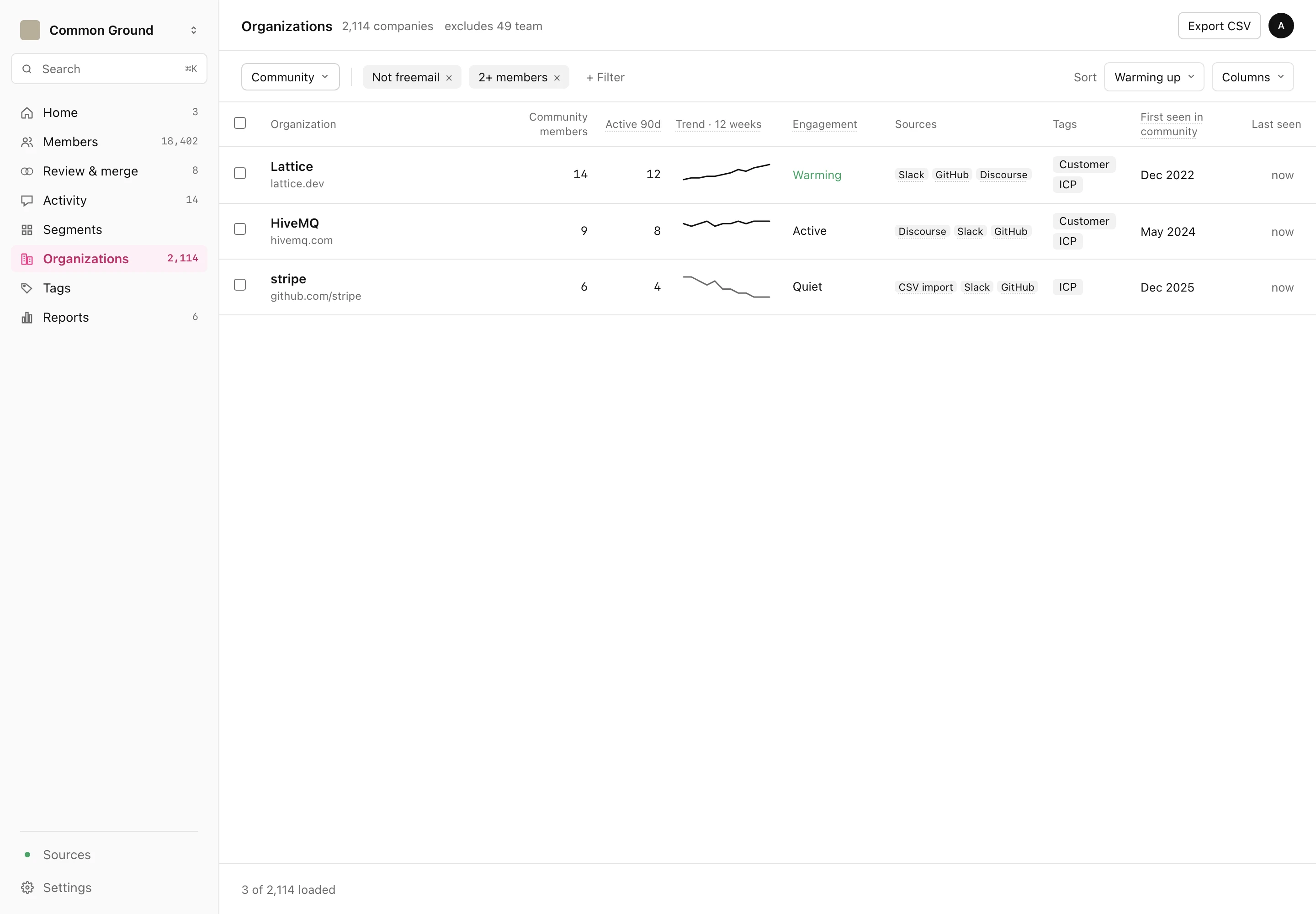
Open Organizations. The header counts companies and companies with Warming engagement. Rows identify the source domain or github.com/… organization.
| Column | Meaning |
|---|---|
| Members | Associated community members. |
| Active 90d | Distinct people who contributed within 90 days. |
| Trend · 12 weeks | Distinct active community members per week. |
| Engagement | Warming, Active, Cooling, or Quiet. |
| Sources | Sources with accounts for these members. |
| Tags | Your labels for the company. |
| First seen | The earliest appearance of an associated person. |
| Last seen | The latest activity from an associated person. |
The default sort is Warming up. Other options include Fastest growing, Most impact, Most members, Most active, and Name, A–Z.
Use Columns to hide columns. Press ⌘ K to search for an organization. Enter its name.
Filter
| Control | Effect |
|---|---|
| Community | Excludes staff by default. Everyone includes them. |
| 2+ members | Excludes companies with one person. It starts enabled. |
| Not freemail | Excludes freemail domains. It starts enabled. |
| + Filter | Opens the organization filter builder. |
Remove a filter to include more organizations.
Open an organization
Select a row to open its summary. It includes counts, the five most active people, champions, recent activity titles, notes, sources, and CRM status.
Definitions appear on hover or keyboard focus. Add note opens the note editor in the right panel. + tag adds a company label.
Activity events 90d counts all activity, including channel joins and account lifecycle events. Active 90d counts people with contributions. A company can therefore have activity events without active contributors.
| Control | Result |
|---|---|
| People (N) | Opens the full member table. |
| All activity | Opens the All tab in Activity for this company and the selected people scope. |
| All notes | Opens note history when more than three notes exist. |
| More details | Shows custom fields and imported facts. |
| Send to… | Posts the organization’s card to a Slack channel or colleague, or sends the organization to an agent. The card does not include your own team. See Send a card and Send to an agent. |
Older activity, notes, and About tab URLs redirect to this summary.
Tag organizations
Add a tag from an organization’s page. To tag several organizations:
- Select up to 500 rows on Organizations.
- Use the tag control in the selection bar.
Organizations and people share the same tag list. Tags do not affect matching.
Export
Press Export CSV to download the filtered list. To export selected companies:
- Select up to 200 rows.
- Press Export CSV in the selection bar.
Organization sets
An organization set saves a filter, such as “3 or more community members”. It records each company’s entries and departures. Counts exclude your team.
- Open the Community scope menu on Organizations.
- Select Saved sets.
- Enter a Set name.
- Build the filter.
- Select Preview set.
- Check the matching company count.
- Select Save set.
Save set becomes available when the preview matches the current filter. Saved sets provide View, Edit, Refresh, and Archive controls.
Sets update when associated companies change. The hourly sweep checks time-based conditions, such as activity within 90 days. These changes can take about 60 minutes, plus queue delays. Refresh evaluates a set immediately. Archiving retains its membership history.
Agents can subscribe to entries and departures. See Watch companies with an organization set.
Merge two names for one company
An alias groups organization keys under one company. For example, acme.com, acme.io, and the GitHub organization acme can share counts. Only owners can add or remove aliases.
- Open the organization you want to retain.
- Select Alias… in the right panel.
- Search for the other company, or enter its key, such as
domain:acme.com. - Select Add alias.
- Check the company that will receive the combined counts.
- Review the effects on external records in the dialog.
- Select Alias company.
For the aliased company’s existing CRM and warehouse copies, Datum clears its key and sets community headcount to zero. This cleanup includes disabled and archived destinations.
Enabled destinations with subscriptions update the retained company’s record. Connected event subscribers receive the changes.
Select several companies in the list to group them. Use Alias… to choose the retained company. Your choices remain after sorting.
Remove deletes the active association and separates the counts again. Datum retains alias history. An alias cannot target another alias.
Custom fields
More details supports company fields such as account owner or contract tier.
- Enter a Field key.
- Enter a Value.
- Select Share definition with members if people should use the same field.
- Press Save field.
A new key creates a field. Clear removes a value but retains its definition. Custom fields do not affect matching. See Custom fields.
Imported facts
More details can show external facts without changing community counts:
- HubSpot supplies company properties through a connected source.
- Imported Common Room assertions show organization records with an exact domain match. They include employee and contact counts at export time.
Common Room assertions supplement the calculated organization. They do not replace it. See From Common Room.
Organization sinks export organizations to CRMs and warehouses.
Not an organization
Owners can exclude an organization key from lists and counts.
- Open the company page.
- Select Not an organization….
- Enter an optional reason.
- Review the cleanup and subscriber notifications in the dialog.
- Confirm the exclusion.
Reasons have a 500-character limit. Do not include personal data in a reason.
Exclusion retains member profiles, the organization ID, notes, tags, and exclusion history. The company leaves saved sets. Its page remains accessible by key or ID, with zero members and exclusion details.
Organization sinks clear the Datum key and set community headcount to zero. This applies even to disabled or archived destinations. Connected event subscribers receive notifications.
Excluding a github: key does not exclude a domain: key for the same company.
The following interfaces also support exclusion:
- Run
ocmgr organisations exclude domain:personal.example --reason "Personal domain" --json. - Call
exclude_organisation. - Request
POST /v1/organisations/{id}/exclude.
Use --dry-run to preview the command’s effects.
To restore an organization:
- Open Excluded organizations from the list’s scope menu.
- Open the retained company page.
- Select Restore.
- Confirm any recreation of records at enabled sinks.
You can also use ocmgr organisations restore <key> --json, restore_organisation, or POST /v1/organisations/{id}/exclude/remove.
Restoring an organization immediately rebuilds its memberships and calculated counts. Restoration also emits an organization update. Eligible sinks can therefore restore tracked companies with zero members even when their counts do not change.
Inspect exclusions with ocmgr organisations exclusions --json, list_organisation_exclusions, or GET /v1/organisations/exclusions.
From your terminal or agent
By default, lists and exports show corporate organizations with at least two community members, as the screen does. You can also include smaller organizations, and stored rows whose domain is now classified as freemail. To do this, use one of these options:
- At a terminal:
--min-members 0 --no-corporate-only. - Over REST:
min_members=0&corporate_only=false. - Over MCP: the same two fields in the
filtersobject.
An organization’s headline member and active-member counts always exclude staff. The detail’s team parameter changes only its people and activity lists. Export selections accept either organization UUIDs or stable keys such as domain:acme.io in organisation_ids.
Organization keys remain stable across rebuilds. Examples include domain:acme.io and github:acme. Use these keys to retain references.
ocmgr organisations list --min-members 2 --sort growth --json
ocmgr organisations show domain:acme.io --no-team --json
ocmgr organisations alias domain:acme.io domain:acme.com --json
ocmgr organisations tag domain:acme.io customer --json
ocmgr organisations sets list --include-archived --json
ocmgr organisations sets show <setId> --json
ocmgr organisations export --organisation domain:acme.io --format csv
ocmgr organisations sets preview --filter '{"field":"organisation.members","op":"gte","value":3}' --json
ocmgr organisations sets create "Growing companies" --filter '{"field":"organisation.members","op":"gte","value":3}' --json
{ "name": "list_organisations", "arguments": { "filters": { "min_members": 2 }, "sort": "growth" } }
{ "name": "get_organisation", "arguments": { "id": "domain:acme.io", "team": false } }
{ "name": "alias_organisation", "arguments": { "canonical": "domain:acme.io", "alias": "domain:acme.com" } }
{ "name": "preview_organisation_set", "arguments": { "filter": { "field": "organisation.members", "op": "gte", "value": 3 } } }curl "$OCMGR_URL/v1/organisations?min_members=2&sort=growth" \
-H "Authorization: Bearer $OCMGR_API_KEY"
curl "$OCMGR_URL/v1/organisations/domain:acme.io?team=false" \
-H "Authorization: Bearer $OCMGR_API_KEY"
curl -X POST "$OCMGR_URL/v1/organisation-sets/preview" \
-H "Authorization: Bearer $OCMGR_API_KEY" -H 'content-type: application/json' \
-d '{"filter":{"field":"organisation.members","op":"gte","value":3}}'Run ocmgr organisations rebuild to recalculate all organizations when needed. See list_organisations and alias_organisation.
Engagement
The default list applies Community, Not freemail, and 2+ members. Company headline counts always exclude staff, even when Everyone includes staff in the people and activity lists.
To send companies to a CRM:
- Select the companies.
- Select Send to CRM.
- Choose an enabled, verified organization sink.
- Review the eligible count.
- Confirm the named destination.
- Check deliveries in Settings → Destinations.
Organization responses count distinct contributors in the last 90 days and the preceding 90 days. Contributions exclude channel joins and account lifecycle events. Counts exclude staff unless you include them. Erased people never count.
The following rules apply in order:
| Engagement | Condition |
|---|---|
| Quiet | Active people fall below the larger of two people or 10% of members, rounded up. |
| Warming | Active people increase by at least two and at least 25%. |
| Cooling | Active people decrease by at least two and at least 20%. |
| Active | None of the earlier conditions apply. |
Warming up sorts by the increase in active people, current active count, and name. The warming count covers all matching companies. The periods cover consecutive 90-day windows rather than calendar quarters.
The twelve-week trend counts distinct active community members per week. Weeks start on Monday in UTC. The current week appears last. The trend always excludes staff.
New contributions appear after the hourly analytics refresh. Team changes, organization membership changes, merges, and erasure update the trend immediately.
ocmgr organisations list --sort warming --json returns both active counts, engagement, and the trend. ocmgr organisations show domain:acme.io --no-team --json also reports the excluded staff count. CSV exports include both active counts and engagement.
FAQ
Why isn't my own company listed?
The default list excludes companies that contain only your staff. Choose Everyone in the scope menu to include them.
Why does a company show fewer people than I expected?
Counts require a corporate email domain or GitHub membership association. A personal email address does not identify an employer.
Add an alias when a company uses several domains.
Can I add an organization by hand?
No. Datum calculates organizations from people. You can add tags, custom fields, and aliases to existing organizations.
Do organizations affect matching?
Calculated organization records do not affect matching. A shared corporate email domain remains a separate matching signal.