Segments
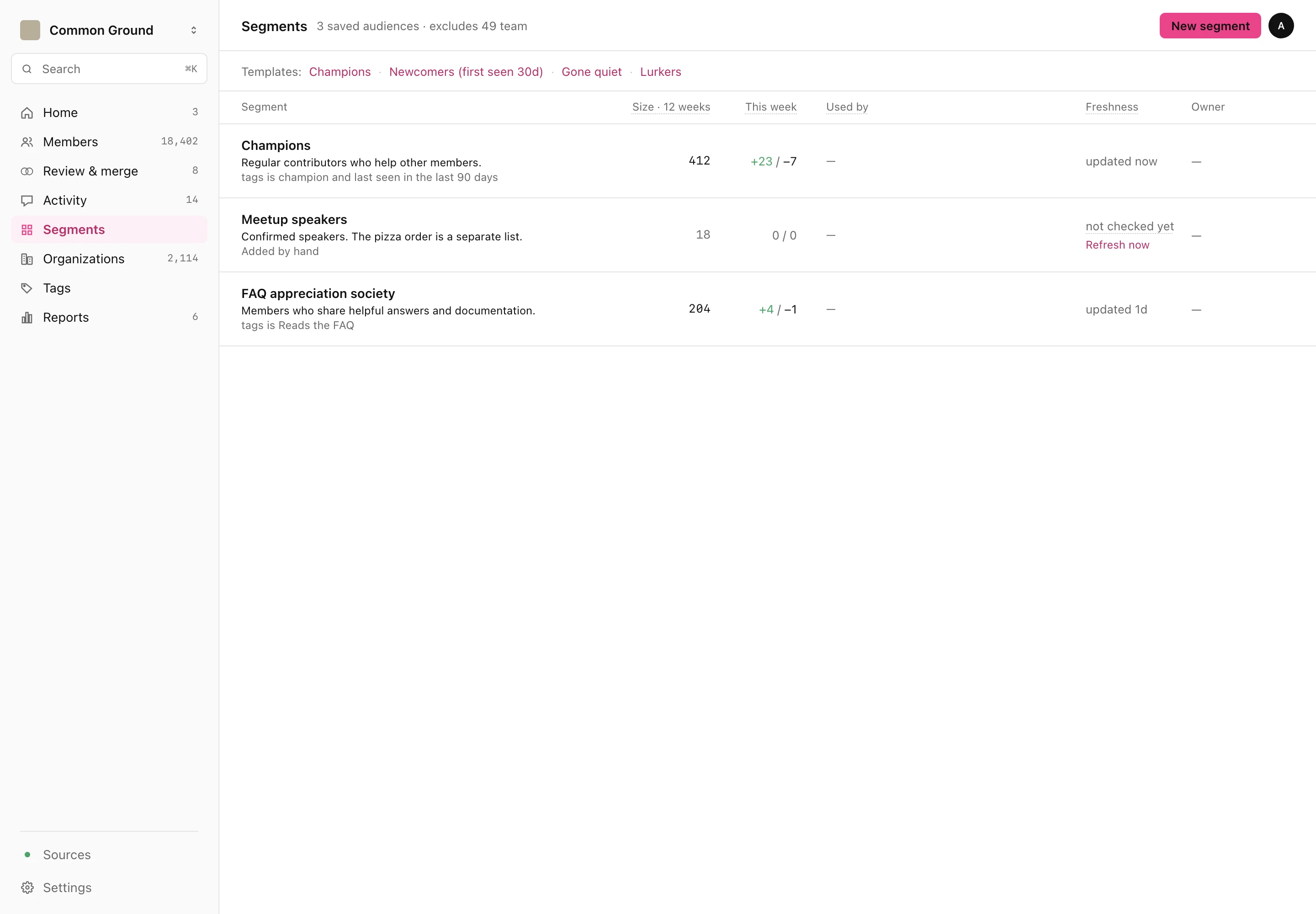
Group members with filters, manual membership, or both. Track entries, departures, and member statuses.
Overview
A segment groups community members for a purpose, such as finding contributors or planning speaker invitations. Membership combines two lists:
- Filter membership updates automatically as people meet or stop meeting the saved conditions.
- Manual membership retains people until someone removes them, regardless of filter results.
A person belongs to the segment when either list includes them. Datum records entries and departures as well as current membership.
Basics
Create a segment
- Open Segments → New segment.
- Enter a Name.
- Describe the purpose under What it is for.
- Build conditions under Who they are and What they’ve done with + Add, and nest groups with + Group. Or leave the filter empty for manual membership.
- Check the preview’s count, filter description, and sample members.
- Press Save. The segment opens on its Members tab.
The Filter reference lists available fields. The preview identifies an empty filter as manual membership.
Filter the Members table to prepare conditions for a segment. Select Save as segment. The form opens with those conditions.
Saving evaluates membership immediately for smaller communities. Large communities use queued evaluation. The segment list shows not checked yet until the worker finishes.
A new segment’s name must be unique. The web app refuses a name another segment already has, ignoring capitalization.
Add and remove people by hand
Select + segment on a profile to add that person. Choose the segment. The profile marks the membership as explicit. This means that a person added it by hand.
To add several people:
- Select rows on Members or a segment’s Members tab.
- Select Add to segment in the selection bar.
- Choose the segment.
To remove manual membership:
- Select people on the segment’s Members tab.
- Press Remove from segment.
Removal affects only manual membership. People who still match the filter remain in the segment, and the confirmation says how many stayed for that reason.
Read a segment
The header shows the name, what the segment is for, the filter in words, and Edit. N added by hand reports manual additions. Counts show current members, this week’s entries and departures, and the latest update.
The top bar has three controls:
| Control | Contents |
|---|---|
| Community | Who the table counts: Community (your team left out, the default), Everyone, or Team only. |
| ··· | Pin to Home, Refresh now and View in Members. |
| Use this segment | Post entries to Slack, Sync to CRM, Export and Notify me. An action that needs a missing connection is disabled, and its tip says what to connect. |
| Tab | Contents |
|---|---|
| Members | Current members, with search and export. |
| Activity | The members’ activity, with a thread tone summary. |
| Movement | Membership history: who entered and left. |
| Notes | Segment notes and their count. |
Edit opens the name, description, workflow statuses, and conditions. Save applies changes. Cancel discards edits. Both return to Members.
Where other features use a segment
Segment responses include usedBy: routing rules, sinks grouped by connector, and saved reports. Disabled rules and sinks count; archived entries do not.
Reports count only when a parameter contains the exact segment ID. Mentions inside SQL do not count.
Inspect each category with the same segment filter:
ocmgr routing rule list --segment Advocates --json
ocmgr sink list --segment Advocates --json
ocmgr reports list --segment Advocates --json
REST lists accept ?segment=Advocates. Agent tools accept segment: "Advocates". Both names and IDs work.
list_segments also describes weekly community size history and the staff count excluded from saved membership.
Membership history
Movement lists changes newest first. Each entry shows the direction and the cause. Causes include matched the filter, added by hand, removed by hand, filter changed and no longer matches the filter.
Filter membership changes automatically. Manual membership changes only through explicit additions or removals.
History starts when you save the segment. Choose This week, 30 days, 90 days or All time to set the period. With no changes in the period, the tab shows Nobody entered or left this week. and a link to show all time.
Statuses
Segments support up to eight statuses, such as “Contacted” and “Done”. New segments have none.
Select + Status on Members to add a status. Open Edit → Workflow statuses to manage the complete list. Status tones include accent, healthy, danger, and muted.
Status counts appear above the member table. Select a status to filter members. Select All to remove that filter.
Select members to apply a status in bulk. Use Set status in the selection bar. Individual rows also provide status controls.
Filter-selected members retain their status while they match. Set automatically when… assigns a filter to a status. Each refresh applies the first matching status in list order. Manual statuses take priority and never change automatically.
Snooze hides selected people from Members and exports until the chosen date. It does not change membership. Turn on Include snoozed to show them again.
Pin to Home
Select ··· → Pin to Home to display the segment on Home. Pins show community counts and weekly entries and departures. Home supports six pinned segments.
Select Unpin from Home to remove the pin.
Refresh
Syncs and edits evaluate affected segments. An hourly sweep handles time-based filters, such as activity within 30 days. Team-domain and reply-window changes also schedule evaluation for the next sweep.
Select ··· → Refresh now after a bulk import or when the segment shows not checked yet. Small communities update immediately. Large communities update after queued work completes.
View in Members opens the member table with the segment filter.
Receive membership notifications
Each entry and departure creates an event. Notify me sends Slack direct messages for these changes. It requires an owner and a connected Slack app. See Notify me.
External systems can subscribe to segment.member_entered and segment.member_left. See the Event catalogue.
When a filter becomes invalid
Filters cannot compile when they reference unavailable tags, segments, or custom fields. The segment list shows filter broken. The segment page shows Filter needs fixing, and the filter names the archived tag, such as “speaker (archived)”. Archiving a tag lists the segments that use it before you confirm.
Datum retains current members and records no departures while evaluation pauses. Correct the filter or restore the referenced item. Evaluation resumes when the filter compiles.
Creating an archived tag’s name again restores that tag, but not its assignments. Datum checks the segment again when the tag comes back. People who matched only through that tag leave the segment. Apply the tag again to bring them back, or change the filter.
Saved searches from before the filter language
Older segments display their original conditions as Saved search. They continue to select and count members. Edit as filter converts the search to builder conditions with the same selection.
From your terminal or agent
Use segments status-add <segment> <key> <label> --tone accent to append a status without replacing existing statuses.
Add --filter '<json>' to assign that status automatically. The --statuses list also accepts an optional filter on each status.
Use segments set-status <segment> <memberId> --snooze-until 2026-12-01 to snooze until midnight UTC on that date.
ocmgr segments create "Speakers" --description "People we'd ask to speak" --json
ocmgr segments add "Speakers" <memberId> <memberId> --json
ocmgr segments status "Speakers" --json
ocmgr segments history "Speakers" --limit 20 --json
ocmgr segments update "Speakers" --pin --json
{ "name": "create_segment", "arguments": { "name": "Speakers" } }
{ "name": "add_to_segment", "arguments": { "segment": "Speakers", "member_ids": ["<memberId>"] } }
{ "name": "segment_history", "arguments": { "segment": "Speakers" } }curl -X POST "$OCMGR_URL/v1/segments" -H "Authorization: Bearer $OCMGR_API_KEY" \
-H 'content-type: application/json' -d '{"name":"Speakers"}'Run ocmgr segments update <segment> --clear-filter to retain only manual membership.
See create_segment, update_segment, add_to_segment, and remove_from_segment.
See also segment_status, segment_history, set_segment_member_status, and refresh_segment.
FAQ
I removed someone and they're still in the segment.
The filter still selects them. Removal affects only manual membership.
Inspect the preview under Edit to understand the match. Change the filter if necessary.
What is a Saved search on an older segment?
It contains conditions from before the filter builder. See Saved searches from before the filter language.
Can two segments have the same name?
No. The web app refuses a name another segment already has. The CLI, API and agents return the existing segment with created: false. Datum ignores the filter, description and statuses in that call. To change the segment, use ocmgr segments update <segment> or update_segment. The CLI also prints a reuse warning.
Can I delete a segment?
Not yet. Clear its filter to remove automatic membership. Remove its manual members to empty it.
contact.last_seen uses profile observation and activity timestamps, including reactions and joins. It excludes presence-only visits. Use contact.last_visited or presence filters for visits.
Older stored activeSince filters retain this meaning and map to contact.last_seen. The public flat filter now uses seen_since. These fields do not measure contributions alone.
activity.* fields evaluate events selected by where. They can include reactions unless where.types excludes them. They do not measure visits or exclusively member-initiated contributions.
To append one status atomically over REST, send PATCH /v1/segments/{id} with {"append_status":{"key":"invited","label":"Invited","tone":"accent"}}. MCP uses update_segment with append_status; the CLI uses segments status-add. Datum keeps the existing statuses and automatic filters.
Setting a non-empty status for someone outside a segment adds them manually. Clearing a status does not add them. snooze_until accepts an ISO timestamp or a plain date, interpreted as midnight UTC.