Member profiles
Review a person's accounts, profile values, activity, and notes. Correct values or manage links from the same page.
Overview
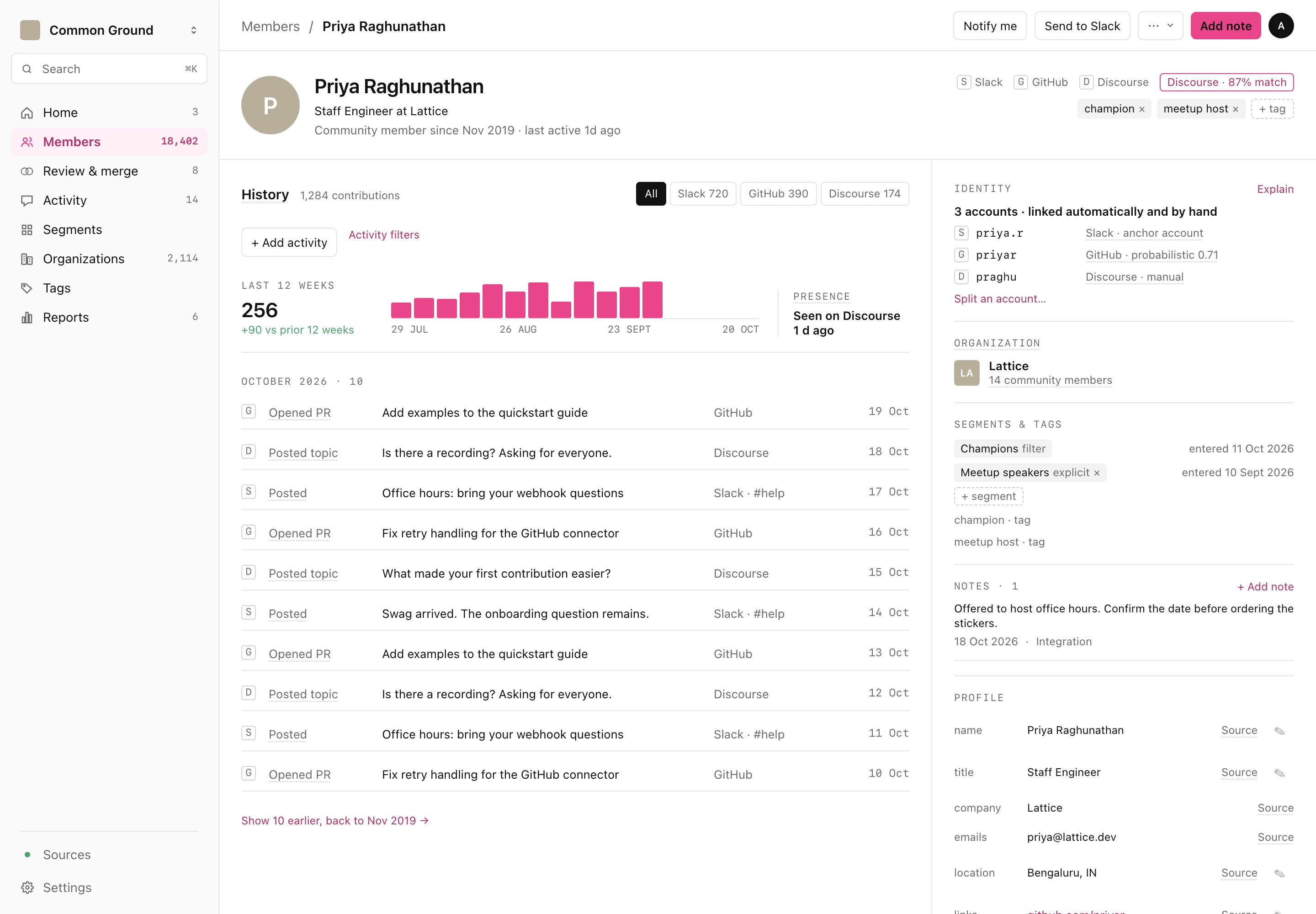
A member profile combines one person’s accounts across sources. It shows account links, profile values, activity, and your team’s notes. Each value identifies its source. You can undo each link between accounts.
Open a profile from Members, search, or a member name elsewhere in the app. Search opens with ⌘ K.
Old member links and IDs continue to work after a merge. The profile explains the merge and shows the member that now contains the accounts.
Datum stores a small copy of the profile photo of each member. Datum does not accept SVG images. When many linked accounts have photos, Datum uses the photo of the most recently seen account that has a real photo. Default icons and letter avatars use the initial of the member. When you open a profile or a review pair, Datum makes no image requests to the source or to an outside image service.
The page
The header shows the member’s name, title, organization, location, and first-seen date. The left column is the person’s History: their activity, newest first. The right column holds Identity, Organization, Segments & tags, Notes, and Profile, followed by Enrichment, Routing, and Sinks when they apply.
Actions
The header has Notify me, Send to…, Add note, and a ··· menu (Member actions).
| Action | Result |
|---|---|
| Notify me | Sends activity notifications about this person to your Slack account. This action requires an owner. See Notify me. |
| Send to… | Posts a member card to a channel or colleague, or sends the person to an agent. This action requires an owner. See Send a card and Send to an agent. |
| Add note | Opens the note composer in Notes. |
| ··· → Merge with… | Combines two members. See Merge with another member. |
| ··· → Add tag | Adds a label. A new name creates a tag. The reserved team tag identifies your staff. |
| ··· → Copy id | Copies the member ID for commands, APIs, or agents. |
| ··· → Erase personal data… | Owners only. See Erasure and retention. |
Segments & tags
Tags are labels on the member. The × removes a tag. Segments show membership. A linked label means membership through a filter. An × means manual membership that you can remove. The status menu of a segment sets the status of this person.
Identity
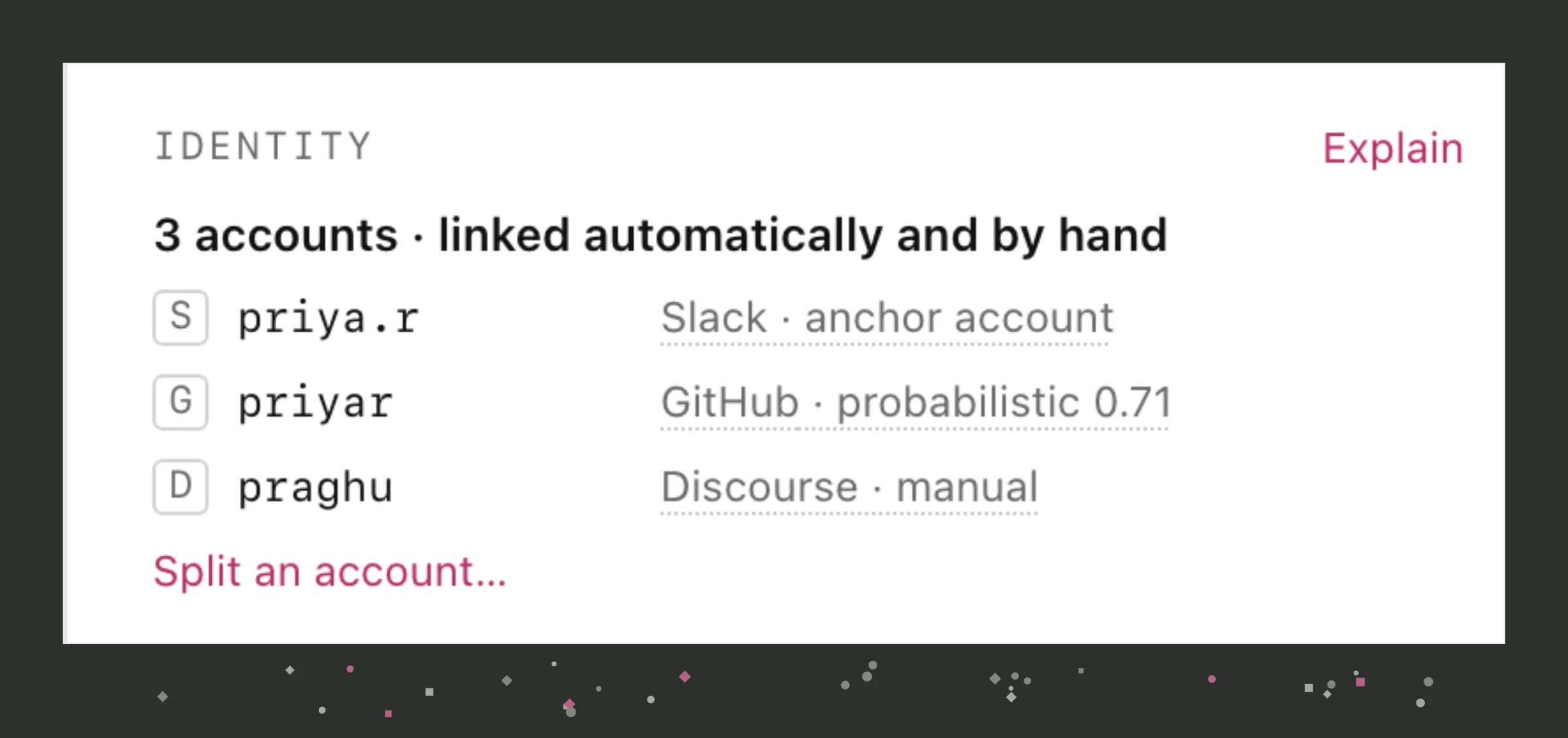
Identity counts the linked accounts of the person. It also tells how Datum linked them: automatically, manually, or both. Each account shows its ID, the name of its source, and how it joined the member. To see the kind of source too, hold the pointer over the source icon, for example Push API · Meetup RSVPs (webhook).
| Label | Meaning |
|---|---|
| anchor account | The account that the other accounts link to. |
| manual | A person linked it. The matcher cannot undo pinned links. |
| verified email, commit email, profile reference, same sign-in | A rule linked it automatically. |
| probabilistic 0.87 | Matching evidence linked it automatically, with that score. |
Profile corrections and activities that you add manually are not accounts. Datum stores each one with its own provenance. Identity does not list them. They do not count toward account totals or the eight-account limit of the matcher.
Explain opens the account details:
- Linked accounts lists the accounts.
- Why these are one person lists their links. Each link shows both accounts, confidence, method, evidence, and any reason. Undo this merge removes one link.
- History → opens the workspace History.
Split an account… separates one account into its own member. See Split an account out.
Profile
Each field shows one value. Select Source beside a field to see where the value came from.
To correct a value:
- Select ✎ beside the field.
- Enter the correct value.
- Press Save correction.
Datum stores your correction separately from source evidence. Previously shows the earlier value. You can correct names, titles, companies, email addresses, handles, bios, locations, and links.
Custom fields also appear here with their types. Select ✎ to edit a custom field. Enter an empty value to clear it. Custom fields do not affect matching.
With a HubSpot connection, Show all HubSpot fields displays that source’s fields for the person.
Email addresses
By default, Datum masks email addresses on profiles and review pairs, for example b***@acmestone.com. Show addresses shows the addresses to users with write access. Hide masks them again.
Each reveal records the requester, members, time, and interface: web, REST, CLI, or MCP. Audit records exclude the addresses themselves. Datum combines repeated reveals from the same actor and interface within 15 minutes. History lists these records.
Use one of these interfaces to read masked addresses:
- Call
get_memberwithfields: ["emails_masked"]to receiveemailsMasked. - Request
GET /v1/members/{id}?fields=emails_masked. - Run
ocmgr members show <id> --fields emails_masked --json.
Reads with fields: ["emails"] always create reveal audit records. Review reads with unmask: "emails" also create them. Masked reads do not create reveal events.
Community presence
Supported sources show days when the person visited, including visits without contributions. See Presence.
Notes
Notes record what your team knows about the person. To add a note, enter text in Add a note. To mention a colleague, select Mention a teammate. Notes do not affect matching. See Notes.
Organization, Routing and Enrichment
- Organization lists associated organizations, their member counts, and their evidence: email domains or GitHub memberships. See Organizations.
- Routing lists the Slack deliveries and failures, with the rule and the destination of each.
- Enrichment lists connected providers and their status: enabled, off, or at the monthly cap.
History
The left column lists the activity of the person, newest first. Each record includes its source and its original link. Use the filters to show fewer records. Load more shows older records.
To record an activity from outside connected sources:
- Select + Add activity.
- Enter a lowercase Type, such as
talk. - Enter a Title.
- Enter an optional Reference link.
- Enter the Date.
- Select Add activity.
The activity appears after processing completes.
Merge, undo and split
Undo and split require a reason. A merge reason is optional. Datum stores the reason with the change.
Merge with another member
- Select ··· → Merge with….
- Select the other member. The dialog lists each member’s accounts, so you can tell two people with the same name apart.
- Read what the dialog found. Datum checks the merge before you confirm it and writes nothing while it checks.
- Optionally enter a reason under Why are they one person? (optional).
- Select Merge.
The check can find three things:
| The dialog shows | Means |
|---|---|
| An earlier decision, with who made it, when and why | A person said that these two are different people. Merge stays off until you select They are the same person: overrule that. Select it only when you intend to overrule that decision. |
| One of them was erased. | Erasure is permanent. Merge stays off. |
| Together they hold a number of accounts above eight | You can merge. After the merge, the matcher sends each new match for this member to review. |
Merges that you confirm have no account limit. Datum creates one pinned link. The matcher and imports cannot remove it. An owner can undo it from History with a reason. If the two are already one member, the merge writes nothing and pins nothing.
Datum records who merged the members, when, and the reason if there is one. When you overrule an earlier decision, Datum revokes that decision. The history keeps both.
Undo a merge
- Select Explain under Identity.
- Select Undo this merge on a link.
- Enter a reason.
Datum keeps the link record, the evidence, the person who removed the link, and the reason.
When the removal separates two people, Datum records that they differ. This decision prevents another automatic merge. You cannot undo a pinned link without the owner role.
Split an account out
- Select Split an account… under Identity.
- Choose the account.
- Enter a reason.
- If the account belongs to a different person, select And never propose it again. If you only do not have sufficient evidence, leave it clear.
- Select Split it out.
Split removes every link that connects the account to the member. The account becomes a separate member.
From your terminal or agent
ocmgr members show <memberId> --fields emails urls profile --json
ocmgr members explain <memberId> --json
ocmgr members add-fragment <memberId> --source manual --field title --value "Principal Engineer" --json
ocmgr notes add member <memberId> --body "Follow up next week" --actor Sam --json
ocmgr notes update <noteId> --body "Follow up on Friday" --actor Sam --json
ocmgr notes delete <noteId> --actor Sam --json
ocmgr members merge <memberId> <otherMemberId> --dry-run --json
ocmgr members merge <memberId> <otherMemberId> --reason "Same person, confirmed on a call" --json
ocmgr merge split <identityId> --reason "Different person" --never-again --json
{ "name": "get_member", "arguments": { "id": "<memberId>", "fields": ["emails", "profile"] } }
{ "name": "explain_link", "arguments": { "member_id": "<memberId>" } }
{ "name": "merge_members", "arguments": { "member_id": "<memberId>", "other_member_id": "<otherMemberId>", "dry_run": true } }
{ "name": "merge_members", "arguments": { "member_id": "<memberId>", "other_member_id": "<otherMemberId>", "reason": "Same person, confirmed on a call" } }curl "$OCMGR_URL/v1/members/<memberId>?fields=emails,profile" \
-H "Authorization: Bearer $OCMGR_API_KEY"
curl "$OCMGR_URL/v1/members/<memberId>/explain" \
-H "Authorization: Bearer $OCMGR_API_KEY"
curl -X POST "$OCMGR_URL/v1/members/<memberId>/merge" \
-H "Authorization: Bearer $OCMGR_API_KEY" -H "content-type: application/json" \
-d '{"other_member_id": "<otherMemberId>", "dry_run": true}'Member responses omit email addresses, profile links, and the full profile by default. Request these fields when you need them.
A merge with --dry-run or dry_run writes nothing. Its preview says whether the real merge would go ahead. When it would not, preview.refusal.reason is not_same, erased or no_accounts. preview.notSame lists each standing “not the same” decision with who made it, when and why. preview.accounts gives the account count after the merge and the matcher’s limit of eight.
See get_member, explain_link, and merge_members.
Add an activity from the terminal
Use the special source manual to record a contribution. The JSON names the member, a unique activity ID, a lowercase type, a title and an ISO date. ref is an optional URL. When you retry the same contribution, keep the same activity ID.
cat > activity.json <<'JSON'
{
  "member_id": "<memberId>",
  "id": "meetup-talk-2026-11-08",
  "type": "talk",
  "title": "Spoke at the community meetup",
  "occurred_at": "2026-11-08T18:00:00Z"
}
JSON
ocmgr sources push manual --file activity.json --json
ocmgr activity --member <memberId> --json
The file must be on the machine that runs the CLI. With Docker, put the file in the mounted imports directory. Then give its path inside the container.
FAQ
Where did this value come from?
Select Source beside the field. The CLI and API provide all candidate values.
Why can't I undo this merge?
Merge with… creates a pinned link. Undoing it requires the owner role and a reason. Use History or ocmgr merge undo <linkId> --force --reason "...".
Why is Notify me greyed out?
This action requires an owner, a Slack app connection, and a sign-in address that identifies you as staff. Slack exports cannot send messages. Datum sends direct messages only to your staff.
Hold the pointer over the button to see which condition is missing.
Does a tag or custom field affect matching?
No. Tags and custom fields do not affect matching.